Batch printing shipping labels: how to speed up afternoon carrier cutoffs
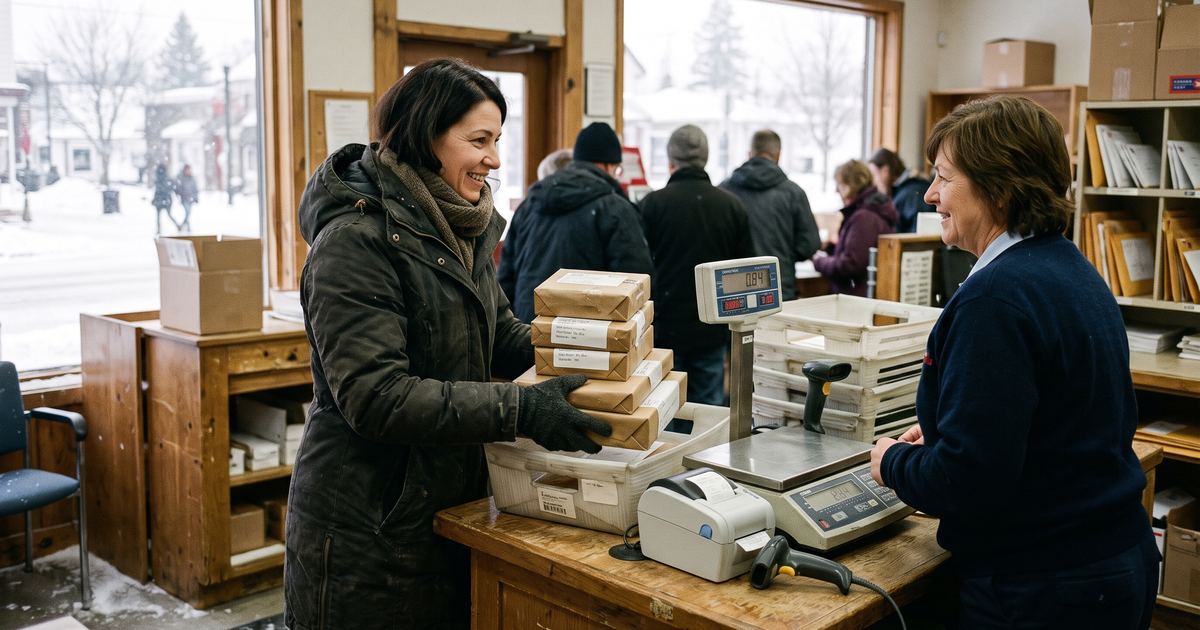
Every warehouse knows the afternoon rush. Carrier drivers arrive at a set pickup window, and any order still sitting on the packing bench misses that day's truck, pushing delivery back by at least a full day.
When packers generate shipping labels one order at a time across separate carrier websites, afternoon cutoffs turn into a bottleneck. Batch printing shipping labels lets your team process dozens of ready orders in minutes. However, batch printing without clear floor discipline can also cause mixed-up labels on the wrong boxes. Here is how to batch print fast while keeping every parcel matched to the right customer.
Why single-order portal printing slows down fulfillment
Printing labels individually from separate carrier portals creates friction that compounds as order volume grows:
- Repeated tab switching: Opening UPS for one order, Canada Post for the next, and Canpar for a third wastes valuable packing time.
- Duplicate data entry: Manually typing or verifying customer names, postal codes, and weights one by one slows down the bench.
- Manual tracking updates: Updating ecommerce stores individually after every label delays customer notifications when the clock is ticking toward pickup.
When batch printing works best (and when to be careful)
Batch printing shines when you have groups of similar, predictable orders, such as single-SKU promotional orders, standard subscription boxes, or pre-packed uniform cartons.
Where warehouses get into trouble is printing a giant stack of 50 mixed labels before picking starts and handing the stack to packers. When loose paper labels sit on a busy table, a packer inevitably slaps Label A onto Box B.
The solution is pairing batch label generation with strict physical order sequence and barcode verification.
Step-by-step: Safe batch label printing workflow
Follow this five-step routine to clear your afternoon queue before carrier pickup without label swaps.
Step 1: Import and filter orders by shipping profile
Pull open orders from Shopify, Amazon, and WooCommerce into one fulfillment view. Group orders logically before processing:
- Separate single-item uniform orders from multi-item custom boxes.
- Separate local delivery fleet runs from national parcel carrier shipments.
- Flag any orders with incomplete addresses so bad data does not stall the batch.
Step 2: Pick orders in a clear physical sequence
Release a manageable batch, such as 15 to 25 orders at a time, rather than hundreds at once. Have pickers scan bin and item barcodes as they place each order into numbered compartments on a picking cart or individual totes.
Step 3: Verify items at the packing bench
Before generating labels, confirm each order's items via barcode scan at the packing station so every box contains the exact SKUs ordered.
Step 4: Compare carrier rates and batch-generate labels
Review carrier rates across UPS, Canada Post, Canpar, and other carriers for the batch, generate the thermal labels in order, and apply each label directly to its matching carton immediately as it comes off the printer.
Step 5: Stage parcels by carrier and sync tracking
Place labeled parcels onto the designated carrier pallet or staging spot (UPS, Canada Post, Canpar), and send Shopify tracking numbers back in one tap so store statuses update promptly.
Practical tips for thermal label printers during peak batches
- Use direct thermal 4x6 labels: Thermal printing requires no ink or toner and feeds continuous fanfold or roll labels quickly without paper jams.
- Clean the printhead regularly: Adhesive residue and dust cause faint barcodes that fail carrier hub scans. Wipe the printhead with an isopropyl alcohol wipe between label rolls.
- Keep a spare label roll at every bench: Running out of labels mid-batch breaks packer rhythm and causes mismatched label sequences.
How HAJEX Bolt speeds up label printing and fulfillment
HAJEX Bolt unifies ecommerce order intake, warehouse picking, and multi-carrier label printing in one workspace so teams hit daily carrier cutoffs smoothly.
- Unified order import: Pull orders from Shopify, Amazon, and WooCommerce into a single fulfillment queue.
- Multi-carrier rate comparison and label printing: Compare rates across UPS, Canada Post, Canpar, and other carriers and print labels without switching between separate carrier portals.
- Barcode-verified pick and pack: Confirm items from labeled spots and bins before packing so boxes match labels accurately.
- One-tap Shopify tracking sync: Send fulfilment tracking numbers back to Shopify in one tap and give customers a tracking page to follow their shipment.
Frequently asked questions
How do I prevent putting the wrong shipping label on a box when batch printing?
Keep batch sizes manageable, pick orders into separated totes or numbered cart slots, scan product barcodes before sealing each box, and apply each thermal label immediately as it prints rather than stacking loose labels on the table.
Should we separate single-item orders from multi-item orders before printing labels?
Yes. Single-item orders of the same SKU share identical weights and box sizes, allowing you to pick, pack, and print labels in a fast, uniform batch while handling multi-item orders in their own dedicated pass.
Should we still compare carrier rates when we're rushing?
Yes. Comparing rates across UPS, Canada Post, Canpar and other carriers takes seconds per order in HAJEX Bolt, and the cheapest carrier for one box is often not the cheapest for the next.
What label size is standard for multi-carrier parcel shipping?
A 4x6 inch direct thermal shipping label is the standard format supported across major parcel carriers including UPS, Canada Post, and Canpar.
How do tracking numbers get back to Shopify after printing labels?
In HAJEX Bolt, once orders are fulfilled and labels are printed, you can send tracking numbers back to Shopify in one tap.